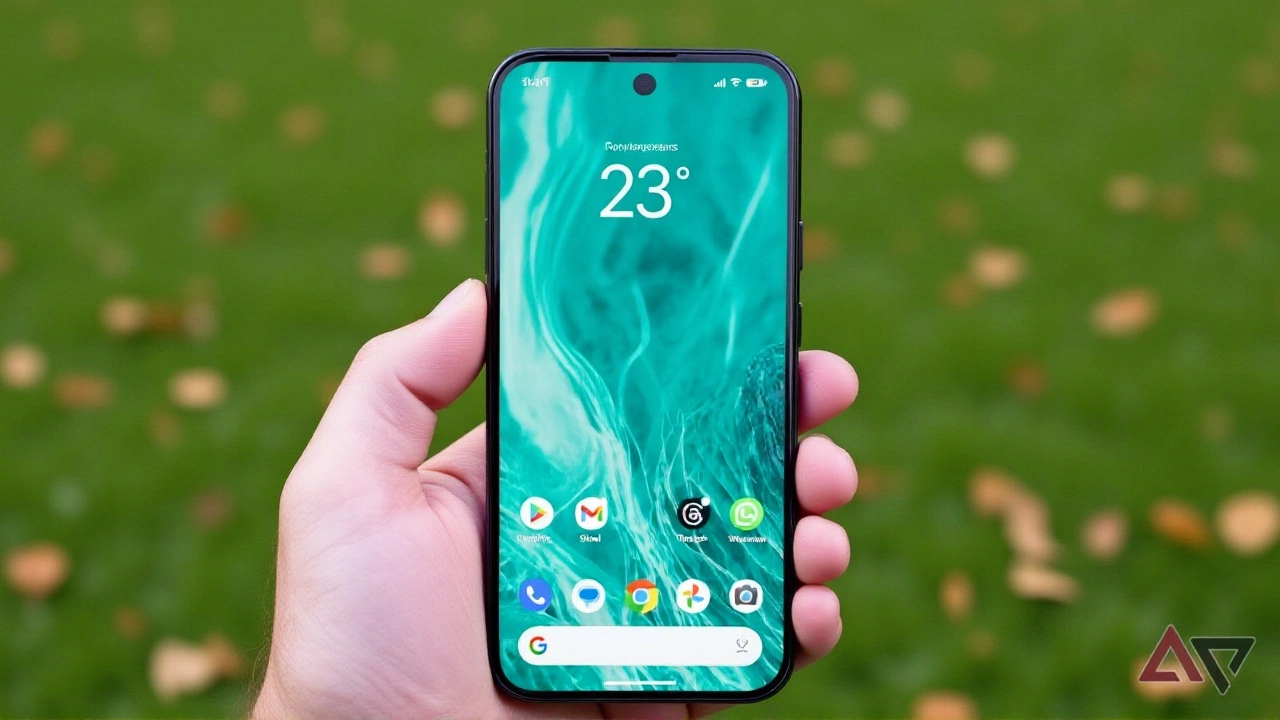
There’s nothing quite as frustrating as seeing a full set of Wi-Fi bars on your phone, only to watch your favorite apps refuse to load. That’s the exact predicament facing early adopters of Android 17, which began rolling out to Pixel devices just yesterday. While the system claims you’re connected, certain applications—particularly those within the Google ecosystem—are silently failing to use that connection, forcing them to rely on mobile data instead.
It’s a bizarre glitch. Your browser might load fine, but Gmail or Maps could stall until you toggle cellular data on. The issue has sparked immediate concern among users upgrading from Android 16, with reports flooding in from owners of devices ranging from the Pixel 7 all the way up to the latest Pixel 10 series.
The "Connected But Not Really" Problem
Here’s the thing: this isn’t a total loss of signal. If you check your status bar, everything looks normal. You’re linked to your home network. The icon is solid. But dig deeper into app behavior, and the cracks show up immediately. According to coverage from Android Authority and Android Police, the problem is highly selective.
Users describe a scenario where their phones appear connected to Wi-Fi, yet specific apps cannot transfer data over that link. Instead, these apps default to mobile data. It’s not universal, either. Some Google services work perfectly; others don’t. This inconsistency makes troubleshooting a nightmare for the average user who just wants their email to sync without burning through their monthly data cap.
The twist? It seems to hit Google’s own products hardest. While third-party apps like Instagram or Spotify may function normally, core services like Chrome, YouTube, and Google Drive are disproportionately affected. For heavy users of the Google ecosystem, this update feels less like an upgrade and more like a step backward in reliability.
Is IPv6 To Blame?
So, what’s causing this digital disconnect? The leading theory points to Internet Protocol version 6 (IPv6). Modern networks increasingly rely on IPv6 alongside the older IPv4 standard, but the transition isn’t always smooth. Android Authority suggests that the bug might be tied to how Android 17 handles IPv6 requirements when the router has it disabled.
Turns out, there’s a potential fix sitting in your router settings. Multiple users have reported that enabling IPv6 support on their home routers restored normal connectivity for affected apps. It’s a simple toggle switch for many modern routers, yet it highlights a complex underlying issue in how the new OS negotiates network protocols.
Android Police corroborates this, noting that enabling IPv6 appears to be the most promising workaround so far. However, it’s not a guaranteed cure-all. One journalist testing the update on a Pixel 10a immediately after release didn’t experience the bug at all, even when toggling IPv6 on and off across various public and private networks. This suggests the issue might depend on a specific combination of device hardware, router configuration, and perhaps even ISP settings.
A History of Beta Woes
This isn’t the first time Android 17 has stumbled. Connectivity issues were already surfacing during the beta phase. In the Google Pixel Community, a user identified as "Brian H 9493" described severe Wi-Fi drops that persisted even after a factory reset. He was left wondering if it was a software flaw or a hardware failure.
Similarly, a report filed in the Google Issue Tracker detailed network instability on a Pixel 7 Pro running Android 17 Beta 1. The user noted problems with both Wi-Fi and mobile data shortly after updating from Android 16. These earlier reports indicate that networking stability has been a persistent challenge throughout the development cycle, rather than a last-minute oversight.
What Can You Do Right Now?
If you’ve updated and are experiencing these symptoms, don’t panic. There are a few steps you can take before waiting for an official patch:
- Enable IPv6 on your router: Log into your router’s admin panel and look for IPv6 settings. If it’s disabled, try turning it on. Save changes and restart your router.
- Forget and Reconnect: Go to Settings > Wi-Fi, long-press your network name, and select "Forget." Then re-enter your password to reconnect. This clears any cached network configurations that might be corrupted.
- Check Mobile Data Usage: Until resolved, monitor your cellular data usage closely, as apps may silently switch to mobile data when Wi-Fi fails.
For now, Google hasn’t issued an official statement confirming the bug or promising a specific timeline for a fix. Users are left relying on community-driven solutions while hoping the next incremental update addresses the root cause. It’s a reminder that even major OS releases can come with growing pains, especially when they touch fundamental infrastructure like network connectivity.
Frequently Asked Questions
Which Pixel devices are affected by the Android 17 Wi-Fi bug?
Reports indicate that the issue affects a wide range of devices, including the Pixel 7, Pixel 7 Pro, Pixel 8 series, Pixel 9 series, and the latest Pixel 10 lineup. The bug does not seem limited to a single model, suggesting a systemic software issue rather than a hardware defect specific to one phone.
Why do Google apps fail while other apps work on Wi-Fi?
The exact reason is still unclear, but evidence suggests it relates to how Android 17 handles network protocol negotiations, particularly with IPv6. Google apps may have stricter connectivity requirements or different fallback mechanisms compared to third-party apps, making them more susceptible to this specific routing error.
How do I enable IPv6 on my router?
Access your router’s web interface by typing its IP address (often 192.168.1.1 or 192.168.0.1) into a browser. Look for settings labeled "IPv6," "Internet Protocol," or "Advanced Network." Enable the option if available, save the changes, and reboot your router. Note that steps vary by manufacturer, so consult your router’s manual if needed.
Will this bug affect my mobile data usage?
Yes, potentially. Since affected apps fail to use Wi-Fi, they automatically fall back to mobile data. If you have a limited data plan, this could lead to unexpected overages. It’s advisable to monitor your data usage closely or disable mobile data for specific apps in your phone’s settings until the issue is resolved.
Has Google released an official fix yet?
As of now, Google has not issued an official patch or statement specifically addressing this Wi-Fi connectivity bug. Users are currently relying on workarounds like enabling IPv6 or resetting network settings. An official fix is likely to arrive in a subsequent security or feature update, but no timeline has been confirmed.






Write a comment